
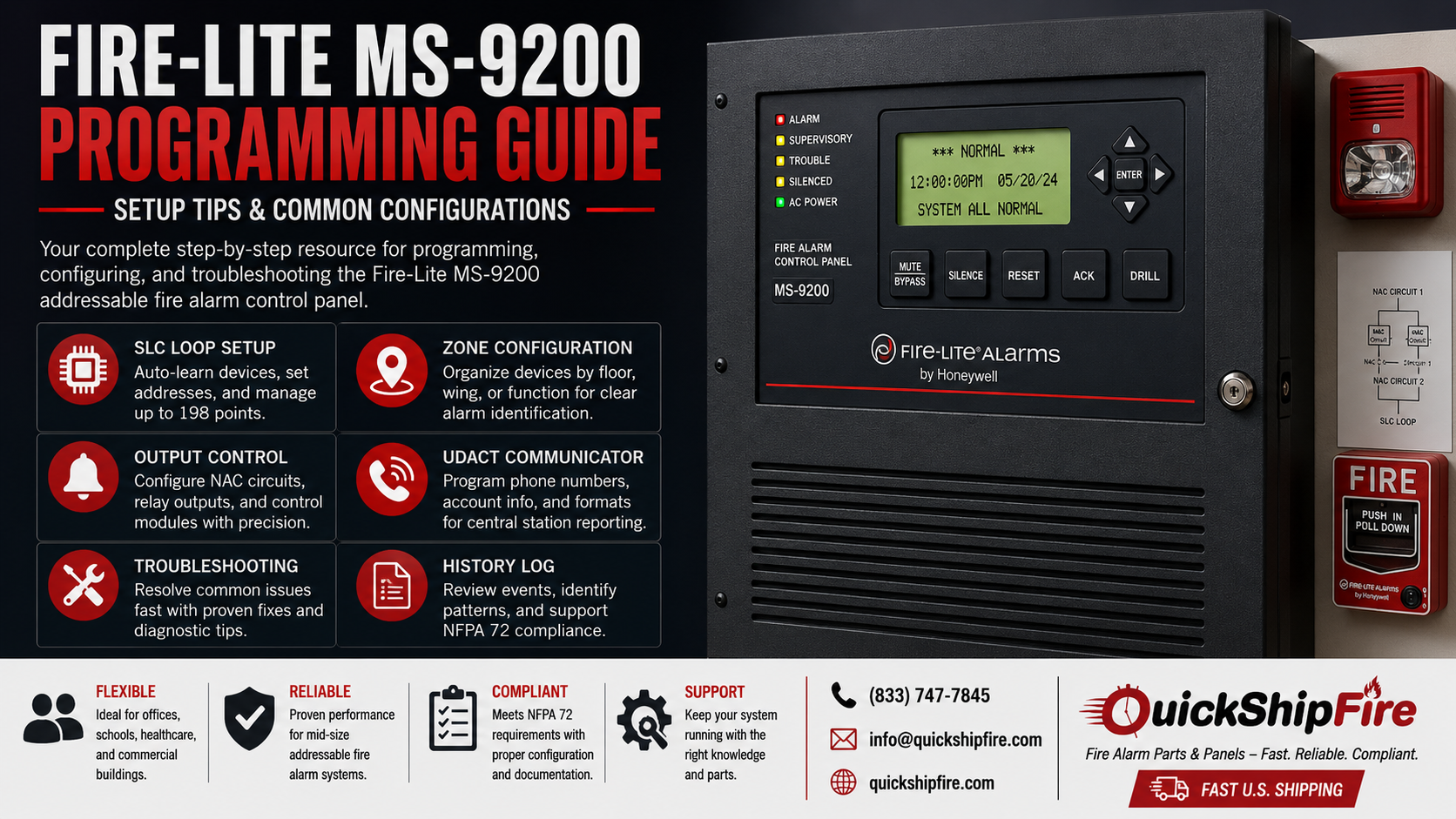
The Fire-Lite MS-9200 series represents one of the most widely deployed addressable fire alarm control panels in mid-size commercial buildings across the United States. If you’re a fire alarm contractor, facility manager, or technician working with this platform, having a solid Fire-Lite MS-9200 programming guide is essential whether you’re commissioning a fresh installation, reconfiguring zones after a tenant change, or troubleshooting a persistent system issue.
The MS-9200 panel family is known for its reliability, relatively straightforward menu-driven programming interface, and broad compatibility with Fire-Lite addressable devices. But like any intelligent fire alarm control panel, it has nuances default passcode behaviour, SLC auto-learn functions, output mapping, and communicator setup that aren’t always intuitive without clear guidance.
This guide walks through the complete MS-9200 setup workflow: understanding the panel variants, accessing programming mode, configuring the SLC loop, setting up zones and output controls, programming the communicator, and common configurations used across different occupancy types. We also cover the troubleshooting scenarios technicians encounter most frequently and what to do when they arise.
Understanding the Fire-Lite MS-9200 Series: Panel Variants
Before programming begins, it’s critical to confirm exactly which variant of the MS-9200 you’re working with. Fire-Lite produced three primary versions of this panel, each with different built-in capabilities:
| Model | Key Differentiator | Best Suited For |
| MS-9200 | Base addressable panel No built-in communicator | Buildings with separate DACT or IP communicator; smaller commercial projects |
| MS-9200UD | Built-in UDACT dialer – Dialer communicator included | Buildings requiring central station monitoring via standard phone line communicator |
| MS-9200UDLS | UDACT + Long Wire Support Extended SLC wire distance | Larger buildings or campus environments where SLC wiring runs exceed standard parameters |
All three models share the same core programming architecture and menu structure, so this guide applies across the entire family. The most significant programming difference is in the communicator setup section, which only applies to the UD and UDLS variants. The MS-9200 supports up to 198 addressable points on a single SLC loop enough capacity for the majority of mid-size commercial applications.
Before You Begin: Prerequisites and Tools
A successful programming session starts with preparation. Before opening the programming menu on any MS-9200 panel, make sure the following are in order:
- Verify firmware version: The programming menu layout and available features vary slightly between firmware revisions. The firmware version is displayed on the panel’s LCD at start-up. Reference the correct manual version for your firmware.
- Confirm passcode: The MS-9200 uses a Level 2 programming passcode to access system configuration. The factory default passcode is 0000, but this is frequently changed by the installing contractor. If the passcode has been changed and is unknown, a panel factory reset may be required which erases all programming.
- Device address list: Have a complete list of all SLC device addresses, device types, and planned labels before programming. Entering programming mode without this information significantly increases the time required to complete the job.
- SLC wiring complete and verified: All SLC loop wiring should be installed and continuity-verified before beginning device programming. Avoid programming while the loop is still open or partially wired.
- Reference the installation manual: Keep the Fire-Lite MS-9200 installation and programming manual open either the physical copy or the PDF from Fire-Lite’s technical documentation portal.
Accessing Programming Mode: Fire-Lite MS-9200 Setup
The MS-9200 uses a straightforward menu-driven interface accessed through the front panel keypad and LCD display. Here’s the standard sequence to enter Level 2 programming mode:
| How to Enter Programming Mode — MS-9200 Key Sequence |
| Step 1 → From the Normal Display screen, press and hold the [MUTE/BYPASS] key |
| Step 2 → Enter your Level 2 passcode when prompted (factory default: 0000) |
| Step 3 → Press [ENTER] to confirm the passcode |
| Step 4 → Use the [↑] [↓] arrow keys to navigate to PROGRAMMING |
| Step 5 → Press [ENTER] to access the Programming Menu |
| Step 6 → Select your programming task from the submenu options |
Once inside the Programming Menu, you’ll find the main submenu options: Point Programming, Zone Programming, Output Programming, Communication Programming, and System Programming. Each of these is covered in detail in the sections below.
One important note on Fire-Lite MS-9200 setup: the panel automatically logs you out of programming mode after a period of inactivity (typically 5 minutes without a keypress). If you’re working on a complex configuration, keep the session active to avoid losing unsaved changes.
MS-9200 SLC Loop Programming: Adding and Addressing Devices
SLC loop programming is the foundation of the entire MS-9200 configuration. Every addressable device smoke detectors, heat detectors, pull stations, monitor modules, and control modules must be individually programmed into the panel’s point database before the system can function correctly.
Setting Device Addresses
Before a device can be recognized by the panel, it must have a unique SLC address physically set on the device itself. On most Fire-Lite compatible addressable devices, the address is set using:
- Rotary switches – two rotary dials that together set the address (e.g., Tens = 1, Units = 4 → Address 14)
- DIP switch arrays – binary switch configurations that correspond to specific address numbers
Each device on a single SLC loop must have a unique address between 001 and 198. Duplicate addresses will generate a trouble condition on the panel and prevent both devices from operating correctly. Always audit your address assignments against the device layout before powering the system.
Auto-Learn vs Manual Device Entry
The MS-9200 offers two methods for populating the point database. Auto-Learn (also called Auto-Program) instructs the panel to scan the SLC loop and automatically detect all wired devices, creating a point entry for each one found. Manual entry allows the programmer to enter each device individually, specifying the address, device type, and custom label.
| Auto-Learn vs Manual Entry – When to Use Each |
| Auto-Learn: Fast and reliable for initial commissioning. The panel scans the full SLC loop and registers all detected devices with their address and device type. After auto-learn, you manually assign descriptive labels to each point (e.g., “Rm 214 Corridor”). Always verify the device type that auto-learn assigns occasionally a detector type may be misidentified. |
| Manual Entry: Best for additions or replacements on existing systems. Navigate to Point Programming → Add Point, then manually enter the address number, select the device type from the dropdown, and enter the label. This method is also preferred when adding modules that require specific output mapping. |
For MS-9200 SLC loop programming, best practice after auto-learn is to print or export the complete point list, verify every entry against your device schedule, and then complete labelling. Point labels on the MS-9200 support up to 40 characters, giving you enough space for meaningful, searchable descriptions that will be invaluable during future troubleshooting.
MS-9200 Zone Configuration: Organizing Your Detection Points
Zone configuration on the MS-9200 controls how devices are logically grouped and how the panel responds to alarms from different areas of the building. Proper MS-9200 zone configuration is essential both for operational clarity and for meeting NFPA 72 zone identification requirements.
The MS-9200 supports both physical device grouping (zone by location) and functional grouping (zone by function type). Common zone programming approaches include:
- Floor-by-floor zoning: All detectors and pull stations on a given floor are assigned to that floor’s zone. This is the most common configuration for multi-story commercial buildings.
- Wing or section zoning: For single-story buildings with large footprints (warehouses, retail stores, schools), zones are divided by building section or wing rather than by floor.
- Functional zoning: Mechanical rooms, stairwells, elevator lobbies, and common areas each receive their own zone designation, even when they’re spread across multiple floors.
To assign a device to a zone in the MS-9200, navigate to Point Programming → Select Point → Zone Assignment. Each addressable point can be assigned to a primary zone. The zone label (e.g., “3rd Floor East”) will appear on the panel display and in alarm reports whenever a device in that zone activates.
Zone programming also allows you to configure zone-level responses: which NAC circuits activate for each zone alarm, which relay outputs trigger, and whether alarm verification is enabled for detectors in that zone. These output mappings are completed in the Output Programming section.
Programming Output Control: NAC Circuits and Relay Mapping
Output programming tells the MS-9200 what to activate when an alarm or supervisory condition occurs. This includes the NAC (Notification Appliance Circuits) that drive horns and strobes, relay outputs that interface with building systems, and any control modules wired on the SLC loop.
NAC Circuit Configuration
The MS-9200 provides multiple NAC outputs, each configurable for:
- Notification appliance type (horn, strobe, horn/strobe combination, or speaker)
- Synchronization protocol (Wheelock, Gentex, System Sensor, or none — must match the devices installed)
- Activation trigger (specific zones, any alarm, or supervisory conditions)
- Silence inhibit – prevents the NAC from being silenced during the alarm event
Synchronization protocol selection is critical and one of the most common configuration errors on the MS-9200. If the NAC synchronization protocol doesn’t match the horn/strobe appliances wired on that circuit, the strobes will flash out of sync which is an NFPA 72 compliance violation and will cause the system to fail acceptance testing.
Relay and Control Module Mapping
The MS-9200 supports onboard relay outputs and SLC-based control modules for interfacing with building systems. Common relay mappings include:
- HVAC shutdown: Air handling units receive a shutdown command on alarm to prevent smoke spread through ductwork
- Elevator recall: Elevators are returned to the ground floor or a designated recall floor per NFPA 72 and ASME A17.1 requirements
- Door holder release: Electromagnetic door holders release to allow fire doors to close automatically on alarm
- Auxiliary alarm relay: General alarm relay output for integration with building management systems (BMS) or security panels
UDACT Communicator Programming (MS-9200UD and MS-9200UDLS)
For panels equipped with the built-in UDACT the MS-9200UD and MS-9200UDLS communicator setup is a critical programming step that connects the panel to the central monitoring station. The UDACT provides digital communication over standard phone lines, transmitting alarm, supervisory, and trouble signals to the monitoring center using Contact ID or SIA formats.
The primary communicator programming parameters to configure:
- Primary and secondary phone numbers: Program both the primary and backup central station receiver phone numbers. The panel will attempt the primary number first and fall back to secondary if the primary fails to connect after the configured number of attempts.
- Account number: Enter the unique account number assigned by the central station. This identifier links all signals from this panel to the correct monitoring account.
- Communication format: Select Contact ID (the most widely supported format) or SIA, based on your central station’s receiver requirements. Confirm the format with the monitoring center before programming.
- Transmission delay: This setting controls how long the panel waits after an alarm before transmitting to the central station typically 30–60 seconds to allow for alarm verification and manual cancellation of false alarms.
- Telephone line supervision: Enable telephone line monitoring so the panel generates a trouble condition if the phone line is disconnected or fails. This is required by NFPA 72 for supervised communication pathways.
After completing communicator programming, perform a full communication test by triggering a test alarm and confirming with the central station that all signal types (alarm, supervisory, trouble, and restore) are received correctly and displayed with the proper account information. Document this test on the NFPA 72 Record of Completion.
Common MS-9200 Configurations by Occupancy Type
Part of what makes the MS-9200 so widely deployed is its flexibility across different building types. Here are the most common configuration setups technicians encounter when working with this panel:
Small Office Buildings (10–50 Points)
For small commercial office buildings, a typical MS-9200 configuration includes two to four zones (floor by floor or building section), a single NAC circuit for horn/strobe appliances, one or two relay outputs for HVAC shutdown and elevator recall, and UDACT communicator programming for central station monitoring. Auto-Learn is usually sufficient for initial device programming, followed by manual label assignment.
Multi-Tenant Commercial Buildings (50–150 Points)
Multi-tenant configurations require more detailed zone mapping typically one zone per tenant suite plus common area zones for lobbies, stairwells, and mechanical rooms. Multiple NAC circuits may be required to provide selective notification by zone (alerting only the affected floor rather than the entire building). Relay outputs for each tenant space’s HVAC unit should be individually mapped.
Healthcare and Education Occupancies
Healthcare and educational facilities require the most rigorous MS-9200 configuration, including zone-level alarm verification settings (to reduce nuisance alarm impacts in sensitive environments), detailed relay mapping for staged evacuation procedures, and full NFPA 72 compliant communicator setup. In these occupancies, every configuration parameter must be verified against local AHJ requirements before acceptance testing.
Fire-Lite Panel Troubleshooting: Common Issues and Fixes
Even on a well-programmed MS-9200, technicians regularly encounter a set of predictable trouble conditions. If you’re working on an addressable fire alarm system for the first time, understanding these common issues before you encounter them will save significant troubleshooting time on the job site.
| Trouble Condition | Most Likely Cause | Recommended Fix |
| OPEN SLC LOOP or GROUND FAULT | Wiring break, pinched cable, or damaged insulation on the SLC wire | Isolate loop sections using the panel’s loop isolation feature; use a multimeter to locate the fault point |
| DEVICE NOT FOUND (after auto-learn) | Device address set incorrectly or device not seated/wired properly in base | Verify rotary or DIP switch address setting on the physical device; check wiring terminations |
| DUPLICATE ADDRESS TROUBLE | Two or more devices share the same SLC address number | Audit all device address settings physically; reassign the duplicate address and re-scan |
| COMM FAIL (UDACT trouble) | Phone line disconnected, incorrect phone number, or account number mismatch | Verify line voltage on telephone terminals; confirm phone numbers and account number with central station |
| LOW BATTERY TROUBLE | Battery is below charge threshold or has reached end of service life | Test battery under load; replace with correct AH-rated sealed lead acid battery per panel spec |
| NAC OPEN CIRCUIT | Open wire on NAC circuit or missing end-of-line resistor | Check NAC wiring continuity; verify EOL resistor is installed at last device on circuit |
Using the MS-9200 History Log for Maintenance and Compliance
The MS-9200 maintains a history log that records every alarm, supervisory, trouble, and restore event with a timestamp. This log is an invaluable tool for both maintenance and NFPA 72 documentation compliance.
To access the history log, navigate from the main menu to the History section. The log stores up to the most recent 500 events and can be scrolled through on the LCD display. For documentation purposes, the log data can be exported using the MS-9200’s serial port connection with appropriate software, allowing you to print or save a formatted event history report.
Common uses of the history log during maintenance visits:
- Identifying patterns of nuisance alarms from specific detectors indicating a dirty or drifting head that needs cleaning or replacement
- Verifying that all tested devices registered properly during the most recent annual inspection
- Documenting the panel’s operational history for the building owner’s maintenance records
- Identifying communication failures or phone line troubles that may have gone unnoticed since the last inspection
For NFPA 72 compliance, the history log supplements (but does not replace) the required written Record of Completion and inspection logs. Always maintain physical documentation in addition to relying on the panel’s electronic log.
Frequently Asked Questions – Fire-Lite MS-9200 Programming
What is the default passcode for the Fire-Lite MS-9200?
The factory default Level 2 programming passcode for the MS-9200 is 0000 (four zeros). However, it is standard practice for installing contractors to change this to a unique code. If the passcode has been changed and is no longer known, consult the original installing contractor. If that’s not possible, a factory reset can be performed but this will erase all programming and requires a full re-commission of the system.
How many devices can the Fire-Lite MS-9200 support on its SLC loop?
The MS-9200 supports up to 198 addressable devices on a single SLC loop, with device addresses ranging from 001 to 198. This includes all initiating devices (detectors, pull stations) and interface modules (monitor modules, control modules). All 198 points share a single loop there is no multi-loop expansion for the MS-9200 series. For systems requiring more points, stepping up to the MS-9600 or another higher-capacity Fire-Lite platform would be appropriate.
What’s the difference between the MS-9200, MS-9200UD, and MS-9200UDLS?
All three models are functionally the same addressable panel with the same programming interface. The MS-9200UD adds a built-in Universal Digital Alarm Communicator Transmitter (UDACT) for central station monitoring over standard phone lines. The MS-9200UDLS includes the same UDACT but also adds Long Wire Support — expanded SLC wiring distance capability for larger buildings where wire runs from the panel to devices exceed the standard maximum. All three models support up to 198 addressable points.
Can I mix Fire-Lite and non-Fire-Lite devices on the MS-9200 SLC loop?
The MS-9200 uses the Fire-Lite proprietary CLIP (Classic Loop Interface Protocol) for SLC communication. Devices must be listed as compatible with CLIP protocol to work correctly on the MS-9200 loop. Many System Sensor devices are CLIP-compatible and appear on Fire-Lite’s listed device compatibility matrix. Always verify compatibility in the MS-9200’s device compatibility list before specifying non-Fire-Lite branded devices for the system.
What NAC synchronization protocol should I use on the MS-9200?
This depends entirely on the notification appliance brand installed on the NAC circuit. Program the NAC synchronization protocol to match the installed horn/strobe appliances: Wheelock for Wheelock devices, Gentex for Gentex, System Sensor for System Sensor, and so on. Mixing synchronization protocols on a single NAC circuit is not permitted and will result in strobes flashing out of sync an NFPA 72 violation. If the NAC mixes device brands, use a System Sensor or Wheelock synchronization module to coordinate the circuit.
How do I perform an auto-learn on the MS-9200 for new devices?
To run auto-learn, navigate to Programming → System Programming → Auto-Learn and press Enter to initiate the scan. The panel will poll all addresses on the SLC loop and create point entries for each device it finds. Auto-learn typically takes 1–3 minutes to complete. After the scan finishes, review the full point list to verify device types are correctly identified, then manually add descriptive labels for each point. Note that auto-learn will overwrite any existing programming for devices at the detected addresses, so use with caution on existing systems.
Where can I find replacement boards or parts for the MS-9200?
As the MS-9200 series ages, original Fire-Lite replacement boards, UDACT communicators, and display assemblies become increasingly difficult to source through standard distribution channels. Specialty fire alarm parts suppliers including QuickShipFire maintain inventory of brand-new MS-9200 components and refurbished boards for facilities that need to keep existing systems operational without a full panel replacement. When sourcing replacement parts, verify the firmware version on the replacement board is compatible with your existing programming version before installation.
Final Thoughts
The Fire-Lite MS-9200 has earned its reputation as a dependable, programmable workhorse for mid-size commercial fire alarm applications. With the right preparation confirmed passcode, clean SLC wiring, pre-planned device address list, and clear zone mapping a competent technician can commission this panel efficiently and produce a system that will serve the building reliably for many years.
For complex installations, healthcare and educational occupancies, or any situation where local AHJ requirements go beyond standard NFPA 72 compliance, always involve a licensed fire alarm contractor with specific Fire-Lite platform experience. The programming steps outlined here provide a solid foundation, but every building’s configuration is unique and acceptance testing by the AHJ is the final verification that everything is set up correctly.
Whether you’re commissioning a fresh installation, maintaining an aging system, or hunting down a hard-to-source replacement board, having the right technical knowledge and the right parts supplier makes all the difference.
| 🔥 Need Fire-Lite MS-9200 Parts or a Replacement Board? QuickShipFire stocks brand-new Fire-Lite panels, MS-9200 replacement boards, UDACT communicators, SLC modules, and hard-to-find components – all new in original manufacturer packaging, with fast U.S. shipping. ➜ Browse our full Fire-Lite product catalog to find exactly what your system needs. 📞 (833) 747-7845 · info@quickshipfire.com · Request a Quote Online |